Category Archives: Uncategorized

Samsung Omnia 7 // Windows phone 7 tethering… FINAL and WORKING!

How to enable tethering on Windows 7 x64 + Samsung Omnia 7  – Windows phone 7…

I do not know for Windows 7 32 bit but on 64 bit I got unknown device so you need to download drivers that can be found here (well exactly here). Download the package and install it.

Connect your phone using USB cable…

First dial: ##634#

Then dial: *#7284#

Choose: Modem, Tethered call

Device will reboot… 

Now you can create a connection to your ISP using dial up modem (chose Samsung mobile modem…)

dial string: (for my ISP – Mobitel Slovenia) *99#
username: mobitel
password: internet

When you click connect you may get error “no carier” (check the log in c:windowsmodemlogs)

If you get this error open device manager, go to your modem and get to properties… In advanced tab put this string in Extra initialization commands…:

AT+CGDCONT=1,”IP”,”internet”

*change the string “internet” into your Access point name (example: “accesspoint”)

It should go now!

This post is writen using my thetered connection. 🙂

Get IP address of virtual machines running on Hyper-V – FIXED!

Big thank you – goes to Max Trinidad my fellow MVP from Powershell group…
Here is errorless script – much better than mine! 🙂
Copa, paste and save as .ps1 – then run on your Hyper-V server and you will get IP’s of your virtual machines…

Set-ExecutionPolicy -ExecutionPolicy RemoteSigned

## – Use Line below to list all your Virtualization Class
#get-wmiobject -namespace “root/virtualization” -list

## – Load filter (or function first)
filter Import-CimXml{

    $CimXml = [Xml]$_
    $CimObj = New-Object -TypeName System.Object
   
    foreach ($CimProperty in $CimXml.SelectNodes(“/INSTANCE/PROPERTY”)){
        if ($CimProperty.Name -eq “Name” -or $CimProperty.Name -eq “Data”){
            $CimObj | Add-Member -MemberType NoteProperty -Name $CimProperty.NAME -Value $CimProperty.VALUE
        }
    }
   
    $CimObj
}

## – Collect WMI Virtual information
$getWmiVirtual = Get-WmiObject -Namespace “rootvirtualization” -Query “Select * From Msvm_ComputerSystem” | sort-object elementname

## – Build your results from your collected objects
ForEach($v in $getWmiVirtual){
    $vm = $v.ElementName;
    $VmObj = Get-WmiObject -Namespace “rootvirtualization” -Query “Select * From Msvm_ComputerSystem Where ElementName=’$vm'”;
    $KvpObj = Get-WmiObject -Namespace “rootvirtualization” -Query “Associators of {$VmObj} Where AssocClass=Msvm_SystemDevice ResultClass=Msvm_KvpExchangeComponent”;
    if($KvpObj.GuestIntrinsicExchangeItems -ne $null){
        write-host $vm;
        $KvpObj.GuestIntrinsicExchangeItems | Import-CimXml | where {$_.NAME -match “NetworkAddressIPv4”} | ft;
    }
}

## – End of Script

SBS 2011 – Import PST in Exhange 2011

To enable import and export of mailboxes on SBS 2011 you need to:

Go to Windows SBS console and create a security group – that shuld be universal (by default) for example: Mailbox management

Add administrator / admin account to the group

Then you need to enable “import / export” feature on members of this group. To do that you need to open Exchange Management Shell (Powershell with Exchange 2010 modules) as administrator and write:

New-ManagementRoleAssignment -Name “Import Export Mailbox Admins” -SecurityGroup “Mailbox management” -Role “Mailbox Import Export”

After that you can folow my article to import or export mailboxes

IPv6 is comming… Get some knowledge and get certified…

IPv4 address space is comming to an end… For all you there is an easy solution to get some knowledge and do some practice using IPv6 – the new generation of IP on http://ipv6.he.net/certification/

It is realy hard to move on in technology if you do not know what exercises to do and what to try… Hurrican Electric certification process will guide you through some basic and more advanced IPv6 tasks… Just go ahead and try… It’s free!

IPv6 Certification Badge for manojlovicl

Running Exchange 2010 on public IPv4 and IPv6…

Yey! Today I have put a testing Exchange 2010 online to make my “exam” on Hurricane Electric IPv6 certification program… Well what I did is to put two extra DNS records to my DNS one with IPv4 “A” record pointing mail.ipv6.testingdomain.com to some IPv4 address and another “AAAA” record pointing mail.ipv6.testingdomain.com to an IPv6 address where my Exchange 2010 is listening…
Then I have added an MX record for domain ipv6.testingdomain.com to point on mail.ipv6.testingdomain.com.
Great! Everything works? NOT! 🙂

If you want your Exchange 2010 to receive mail from IPv6 mail servers you need to configure your receive (and send) connector to listen on IPv6 address of your server…

 Let’s configure Internet receive connector that is listening on fqdn in my example mail.ipv6.testingdomain.com First you need to add IPv6 address on which your server is listening on…


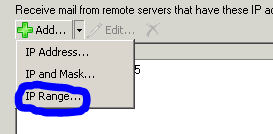
By default your server will accept only traffic from IPv4 world so we need to add IPv6 range…


 Let’s do it…


 Here goes the tricky part… If you think about an IPv6 address you always thing about 8×16 bit separated by colon… And logical solution would be to insert beging of range 0000:0000:0000:0000:0000:0000:0000:0000 and the same for FFFF:FFFF:FFFF… eight times… But no… You need to replace last two segments of 16 bits with 32-bit IPv4 represntation… So you need to insert:

Windows Phone 7 – Active Sync issue… 80072F06 when using self-signed certificate

I am a proud owner of a brand new Windows phone 7 (running on Samsung Omnia…)! 🙂 As soon as I did unpacked my phone I wanted to sync it with my Exchange server… I am using a self-signed certificate and first I had to install the certificate… Ok, you have two options here… You can go to https://mail.domain.com/certsrv and install a certificate directly from your certification authority or somehow put it on your phone by sending it to your email that you can access using web browser on Windows Phone 7…

Ok… To this step everything fine… But now I want to sync and I receive an error saying…

There is a problem with the certificate for mail.domain.com. Contact a support person or your service provider. Error Code: 80072F06

Hmm.. I tried to open my Outlook web access using web browser on my Windows Phone 7 and it worked without any problem – no certificate error warning… So I was realy confused now… My certificate is installed and I do not get any error what the hell is wrong with Active Sync now?

Well… You need to “reboot” your phone and everyting will start to work 🙂

So press the power button and hold it for a few seconds until you receive a “Goodbye” on phone screen… After turning it back I tried to sync again and TADA! Everything is working now!

Peace and love,
Luka

Sinergija 2010 q&a 1 – RDS A to Z

On my Windows server 2008 R2 – Remote desktop services from A to Z there were two questions…

How to setup Single Sign-on so users do not have to reauthenticate to get to remote desktop resources?

Here you have a screenshot of group policy that controls that:

More about single sign-on you can find on:
http://blogs.msdn.com/b/rds/archive/2007/04/19/how-to-enable-single-sign-on-for-my-terminal-server-connections.aspx

The second question was about AERO on RDS server… Yes, you can do that by folowing this tutorial:
http://blogs.msdn.com/b/rds/archive/2009/06/23/aero-glass-remoting-in-windows-server-2008-r2.aspx

SBS 2008 / Exchange 2007 remote.company.com and TLS…

Everyone that has ever installed SBS 2008 has encountered the wizard that create certificate and remote workplace – by default called remote.company.com (yes, you can chose other prefixes but let say that I like remote becouse it is easy to remember for my users…).
SBS wizards generates a certificate for this hostname and uses it for all services (Outlook web access, Active Sync stuff and also for SMTP receive and send connectors…).
The problem is when you want to rename your SMTP receive and send connectors to match the records in DNS. It is a best practice to have same SMTP greetings as the records in DNS so for example if you have a domain company.com and you have an host record A called mail.company.com and MX record pointed to mail.company.com it is correct and I suggest you to folow this rule to have SMTP greeting or fqdn for SMTP connectors to match mail.company.com.

You can rename your connectors however you want by using Exchange management console but you will lose functionality of TLS in SMTP traffic – becouse the certificate remote.company.com does not match fqdn or smtp greeting of a connector that advertise mail.company.com. You will also get an error in Event log saying:

Microsoft Exchange could not find a certificate that contains the domain name mail.company.com in the personal store on the local computer…

 Ok, what can we do now?

Well turn on Exchange Management Shell – that is Powershell with modules for Exchange 2007 management – you can find it in star menu… And first of all we want to see current Exchange certificates that are enabled for Exchange services by using cmdlet:

[PS] C:WindowsSystem32>Get-ExchangeCertificate 

and you wil receive something like this:

Thumbprint                                Services   Subject
———-                                ——–   ——-
45EEEB44DF4BFE2EB1B7A7592EA1DF5BF93F44B4  IP.WS      CN=remote.company.com
42F146B12BEF918A6A8FC730F5AA87AC4ACB1CEB  IP..S      CN=remote.company.com
817F1311CB72FB70F962EC0FAD2D8FA857F114A4  ….S      CN=sbssrv01.company.local
4BAAC7906689AFF0129767CF492AAE058B5DF494  ….S      CN=Sites
8F1D9C5FEB6EF0C39F25175AFBDEA54FE9668EF9  …..      CN=xxxxxx-xxxxxxxx-CA
8E4F33523325500F38ECF41FCDFBBE684AFC6145  …..      CN=WMSvc-WIN-K7KGUV5MQ40
 
Now we should create a new certificate that we will use for SMTP connectors by using cmdlet:
 
New-ExchangeCertificate -domainname mail.company.com -PrivateKeyExportable:1
 
Warning! When you are asked if you want to overwrite certificates chose No!
  
Confirm
Overwrite existing default SMTP certificate,
’45EEEB44DF4BFE2EB1B7A7592EA1DF5BF93F44B4′ (expires 14.1.2012 22:37:04), with
certificate ’59D62E7850EE4093AFF1EC73E2623D52058C2B35′ (expires 27.1.2015
17:09:02)?
[Y] Yes  [A] Yes to All  [N] No  [L] No to All  [S] Suspend  [?] Help
(default is “Y”): N
 
so we get output:
Thumbprint                                Services   Subject
———-                                ——–   ——-
59D62E7850EE4093AFF1EC73E2623D52058C2B35  …..      CN=mail.company.com
 
Great!  If we want to be shure that everything is working correctly and that Exchange SMTP service is using our new certificate we can use cmdlet:

[PS] C:WindowsSystem32>Get-ExchangeCertificate 

[PS] C:WindowsSystem32>

Thumbprint                                Services   Subject
———-                                ——–   ——-
59D62E7850EE4093AFF1EC73E2623D52058C2B35  ….S      CN=mail.company.com
45EEEB44DF4BFE2EB1B7A7592EA1DF5BF93F44B4  IP.WS      CN=remote.company.com
42F146B12BEF918A6A8FC730F5AA87AC4ACB1CEB  IP..S      CN=remote.company.com
817F1311CB72FB70F962EC0FAD2D8FA857F114A4  ….S      CN=sbssrv01.company.local
4BAAC7906689AFF0129767CF492AAE058B5DF494  ….S      CN=Sites
8F1D9C5FEB6EF0C39F25175AFBDEA54FE9668EF9  …..      CN=xxxxxxxxxxx-xxxxxxxxxxxx01-CA
8E4F33523325500F38ECF41FCDFBBE684AFC6145  …..      CN=WMSvc-WIN-K7KGUV5MQ40
We can now see that SMTP connectors are using all certificates (S defnies SMTP service).
Ok… How can you test that TLS works?
You can try it by using telnet client and connect to your server:
telnet mail.company.com 25
 
Exchange should respond something like:
220 mail.company.com Microsoft ESMTP MAIL Service ready at Wed, 27 Jan 2010 17:
12:09 +0100
 
then you can write:
helo test.blablabla.com
 
220 mail.company.com Microsoft ESMTP MAIL Service ready at Wed, 27 Jan 2010 17:
13:07 +0100
helo test.blablabla.si
250 mail.xxxxxxxxxxxxxxxx.si Hello [xxx.xxx.xxxx.xxx]
after that enter command:
starttls


server should respond:

220 2.0.0 SMTP server ready
 
Server ready? Super! 🙂
 
PS.
If you did miss something you will receive error from server saying:
 
starttls
500 5.3.3 Unrecognized command
 
If you get that? Read this tutorial again 🙂
PS. PS. You do not need to restart anything when you apply this commands… No need for restarting Exchange services…
Special thanks to Saso Erdeljanov for some hints about this issue…

Powershell with task scheduler… This is the way to automate your IT! – single machine – p1

Well using Powershell interactively is something that we see all the time when Microsoft want to show us what and how we can automate our daily taks… But administrators want to know how can we schedule our brand new fantastic powershell scripts…

Ok, this guide will tell you how to do it… How to run separate commands from powershell and how to run a complete scripts so you can realy start to automate your stuff by using Powershell…

Example: I would like to schedule script that lists all processes running on a specific server
1. on my server I will first create a txt file (extension should be renamed to ps1 – as we are writing powershell script) called listproces.ps1
2. into the file I will put my scipt:

get-process | out-file c:processes.txt

3. start task scheduler on server and Create Basic Task
Name: Powershell list processes
Triger: Chose when you want your script to run
Action: Start a program
Program / script: powershell.exe
Add arguments: -ExecutionPolicy RemoteSigned –Noninteractive –Noprofile –File C:listproces.ps1

Important! You should set your task to run whether user is logged into a session or not… To do that do the folowing: