In this first part I will go through the situation when one of two racks (in our case Rack 2) in our 4 node Campus Cluster scenario goes offline (simulating electricity or network connectivity outage …).
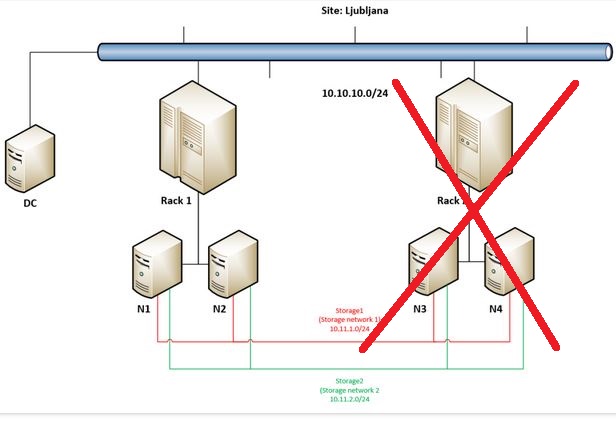
I am running 4 virtual machines (two small (MikroTik Cloud Hosted Router (CHR) and two a bit larger (Microsoft Azure Linux 3.0)) two in Rack 1 and two in Rack 2 on our Two Copy and Four Copy Cluster Shared Volumes – as can be seen at the beginning of the video.
What I am doing is this video is also reducing the timer of ResiliencyDefaultPeriod (which is by default set to 240 seconds (4 minutes)) to 10 seconds – as I do not want you to wait for 4 minutes to see my VMs coming online in Rack 1 🙂
I am reducing this timer also in production environments as I was (until now! 🙂 ) setting up mostly 2 node S2D clusters which are connected back to back, so waiting for 4 is in my oppinion a bit too long. Anyway, you can leave it also on default value.
At 1:25 I am dirty shutting down (Turn Off) nodes N3 and N4 (both in Rack 2) so you can see that machines in Rack 2 (on node N3) are going in Unmonitored state (for ten seconds (as defined by ResiliencyDefaultPerios) and in approximately at 1:36 they are restarted on nodes in Rack 1. We can also observe that nodes are down in Nodes tab in Failover Cluster Manager.
Next I wanted to show you that new background storage repair jobs are created which can be checked (on any node) by using Powershell cmdlet: Get-StorageJob
At 2:55 I am starting missing two nodes (N3 and N4 in Rack 2) again so we can see them joining the cluster again and in couple of seconds we can re-check storage jobs that are getting started (at 3:28) in the background and the data is re-synchronized between nodes from Rack 1 and Rack 2.
At 3:58 you can see that sometimes refresh makes problem to good old Failover Cluster Manager Console so I am just re-launching it again …
At the end of the video you can see that all nodes are green again, we can move VMs back to Rack 2 and there are no background storage jobs waiting – it means that everything was handled correctly by Storage Spaces Direct.
 Luka Manojlovic