Category Archives: Storage Spaces Direct

Windows Server 2025 – Storage Spaces Direct (S2D) Campus Cluster – How does it handle problems / disaster scenarios – part 3 – Bring online the only remaining node – FixQuorum, Force Cluster Start …

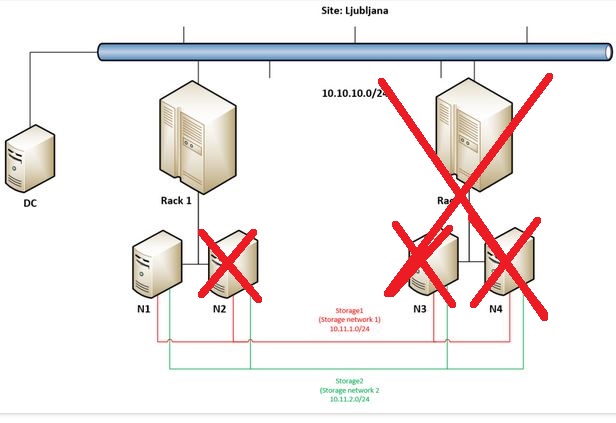
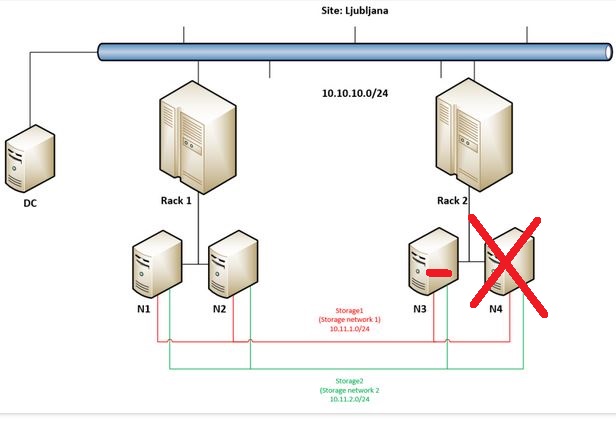
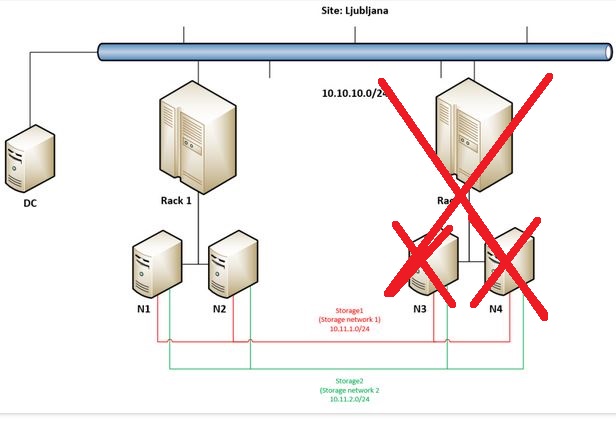
Again – probability of such scenario is in my opinion minimal but I just wanted to push our Campus Cluster to it’s limits – in previous post we have ended with this state:
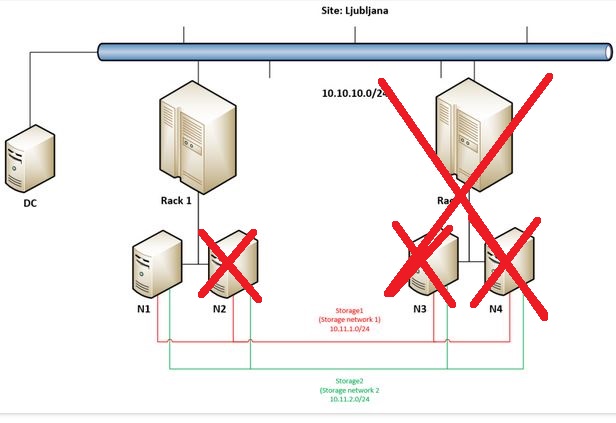
When N2 went offline cluster immediately stopped working as there were not enough votes. In such case administrator has the option to make it run forcefully by “forcing quorum” and force start cluster service.

But let’s get back to the main idea why going into Campus Cluster scenario – to really have the option to built a very robust / resilient storage solution. This demo will demonstrate this robustness so we are going on by forcing remaining node in Rack 1 (N1) to start storage and VMs.

At the beginning of the video I am firing up Powershell on N1 as I need a cmdlet that will allow me to bring things online again:

Start-ClusterNode -Name N1 -FixQuorum

In couple of seconds we should get the information that node is in joining state.

I am turning on Failover Cluster Manager and on the left side in Actions you can see Start Cluster (I am trying that first 🙂 ) and Force Cluster Start – that will run with “ForceQuorum” option. We are getting many warnings at this point but it is a normal behavior in such state.

At 4:26 we can already see some Roles showing up, at 4:42 I am trying to turn off the machines that are in Paused-Critical in Hyper-V console … I made a mistake here – I forgot to move to Storage / Disks in Failover Cluster Manager where I should try to bring Cluster Shared Volumes online – when I did this (at 5:35).

While waiting for Virtual Machine Connection to connect to now running two VMs (those that were running on FourCopy Volumes I am jumping into Window Admin Center which is now showing data again – we can observe (at 8:29) that we have only 8 disks alive (of 32).
At (8:56) we can see that both VMs are online – we are also able to log into them so the operating system works.

So we can see that Campus Cluster can be extremely redundant, resilient, robust in terms of protecting your data – and YES – you can get into running VMs even by forcing last remaining node to run cluster.

But and and just because we were already here…

At 10:21 I am showing that 8 disks are available in N1 (via Failover Cluster Manager / Storage / Pools) and at the end of this demo I am removing another disks from N1 – by doing so I am making everything going into paused state – CSVs are offline, VMs stop responding … But this part was made just for fun as you just can not get that unlucky. 🙂 Hope you have a backup because that is the only way get your data back from such disaster …

Windows Server 2025 – Storage Spaces Direct (S2D) Campus Cluster – How does it handle problems / disaster scenarios – part 2 – sequence of failures – N2 in Rack 2, disk in N1 in Rack 2, N1 in Rack 2 (whole Rack 2 offline), N2 in Rack 1 – cluster quorum failure …

In this part I will try to go through a scenario with really low probability except if you are damn’ unlucky 🙂
I would like to show the resiliency of Storage Spaces Direct in Campus Cluster scenario so what we are going to showcase in this demo is:

– first we will simulate failure of node 2 (N4) in Rack 2
– second – I will remove a healthy disk from node 1 (N3) in Rack 2
– third – I will simulate failure of second node (N3) in Rack 2 (the one that had one disk missing)
– fourth – I will simulate failure of node 2 (N2) in Rack 1 – so the only “survivor” will be node 1 (N1) in Rack 1 that will not continue to work as it will remain in minority – we will cover that scenario in part 3. 🙂

In this part I am introducing also Windows Admin Center to have a better view (even with some delay 🙂 ) of what is going on in the cluster.
So we are staring the scenario by checking Volumes via Windows Admin Center and getting through the disks that are available in our cluster (each of the four nodes have 8 disks dedicated to S2D solution).

At 0:53 I have done a dirty shutdown (Turn off) of N4 and you can see that it went into Isolated state before going into Down. And also virtual machine running on it went into Unmonitored state before being restarted on N2 (in Rack 1), so I am moving (by using Live Migration) it back to remaining node (N3) in Rack 2.

At 1:36 I am checking current situation with disks and I can see that only disks in N4 are missing (as that node is turned offf) but at 2:25 additional disk has “failed” in N3. But as we move to Volumes / Inventory we can see that all volumes are in state “Needs Repair” but with green checkmark so everything is still working and storage is available to workloads (VMs). I am also checking if VMs are online (I am pausing video for couple of seconds as VMC sometimes needs some time to show the console of the VM).

At 3:48 we can observe that also N3 so the remaining node in Rack 2 went offline (it become Isolated and later goes to status Down), VMs running on Rack 2 went into Unmonitored state and after approximately 10 seconds they are being restarted on nodes (N1 and N2) in Rack 1.


Everything is still working only all workloads (VMs) are now in Rack 1, and when I check Volumes / Inventory in Windows Admin Center we can still see that everything is green but needs repair.
In Drives we can see that half of available disks are missing (16 of 32) – the same, even with more details it can be seen in Drives Inventory.

Our Sysadmin is extremely unlucky today:
At approximately 4:58 another disastrous situation happen – N2 in Rack 1 fail. As there are four nodes in this cluster and there is only one node still available cluster stops working – you can see that I am not able to refresh Nodes or Roles in Failover Cluster Manager – Windows Admin Center is showing outdated situation as it can not connect to Cluster anymore.

So in this part we will end here – but as we have setup Four Copy Cluster Shared Volumes (you can check it here) there should be still some hope for our data (spoiler alert: Yes!)? Follow me to the next part.

Windows Server 2025 – Storage Spaces Direct (S2D) Campus Cluster – How does it handle problems / disaster scenarios – part 1 – Rack 2 offline

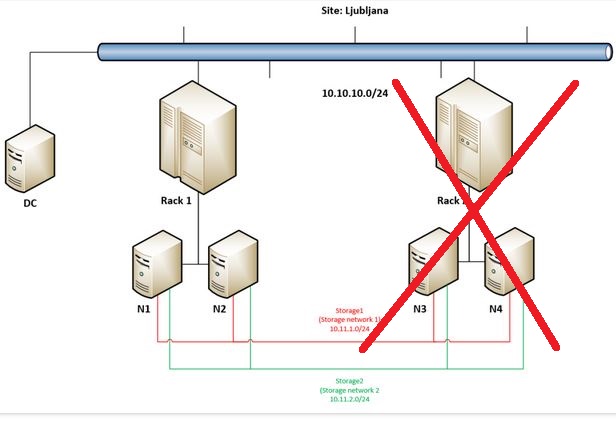
In this first part I will go through the situation when one of two racks (in our case Rack 2) in our 4 node Campus Cluster scenario goes offline (simulating electricity or network connectivity outage …).


I am running 4 virtual machines (two small (MikroTik Cloud Hosted Router (CHR) and two a bit larger (Microsoft Azure Linux 3.0)) two in Rack 1 and two in Rack 2 on our Two Copy and Four Copy Cluster Shared Volumes – as can be seen at the beginning of the video.

What I am doing is this video is also reducing the timer of ResiliencyDefaultPeriod (which is by default set to 240 seconds (4 minutes)) to 10 seconds – as I do not want you to wait for 4 minutes to see my VMs coming online in Rack 1 🙂
I am reducing this timer also in production environments as I was (until now! 🙂 ) setting up mostly 2 node S2D clusters which are connected back to back, so waiting for 4 is in my oppinion a bit too long. Anyway, you can leave it also on default value.

At 1:25 I am dirty shutting down (Turn Off) nodes N3 and N4 (both in Rack 2) so you can see that machines in Rack 2 (on node N3) are going in Unmonitored state (for ten seconds (as defined by ResiliencyDefaultPerios) and in approximately at 1:36 they are restarted on nodes in Rack 1. We can also observe that nodes are down in Nodes tab in Failover Cluster Manager.

Next I wanted to show you that new background storage repair jobs are created which can be checked (on any node) by using Powershell cmdlet: Get-StorageJob

At 2:55 I am starting missing two nodes (N3 and N4 in Rack 2) again so we can see them joining the cluster again and in couple of seconds we can re-check storage jobs that are getting started (at 3:28) in the background and the data is re-synchronized between nodes from Rack 1 and Rack 2.

At 3:58 you can see that sometimes refresh makes problem to good old Failover Cluster Manager Console so I am just re-launching it again …
At the end of the video you can see that all nodes are green again, we can move VMs back to Rack 2 and there are no background storage jobs waiting – it means that everything was handled correctly by Storage Spaces Direct.


Windows Server 2025 – Storage Spaces Direct (S2D) Campus Cluster – part 1 – Preparation and deployment

And finally it is here! An update for Windows Server 2025 that we were waiting for and it is allowing us to create so called Campus Cluster. You can read more about it at the official Microsoft statement, here.

My demo setup looks like this – we have site called Ljubljana there are two racks Rack 1 and Rack 2 and in each rack we have two nodes (in Rack 1 we have N1 and N2 and in Rack 2 we have N3 and N4).

These four servers are domain joined (we have an extra VM called DC with Windows Server 2025 and Active Directory installed), they are connected to “LAN” network of the site with subnet 10.10.10.0/24 and each node has additional two network cards, one connected to a network that I call Storage network 1 with subnet 10.11.1.0/24 and Storage network 2 with subnet 10.11.2.0/24. Storage networks should be RDMA enabled (10, 25, 40, 100 Gbps) low latency, high bandwidth networks – don’t forget to enable Jumbo frames on them (if possible (it should be :))).

It looks like this:


To be able to setup hyper-converged infrastructure (HCI) with Storage Spaces Direct you need Failover Cluster feature and Hyper-V role installed on server. I am doing it via Powershell:

(This cmdlet will require reboot as Hyper-V is installed…)
Enable-WindowsOptionalFeature -Online -FeatureName Microsoft-Hyper-V -All

Install-WindowsFeature -Name Hyper-V -IncludeManagementTools

Install-WindowsFeature Failover-Clustering -IncludeManagementTools

When prerequisites are meet I will run cmdlet to form a cluster C1 with nodes N1-N4, with static IP address in the “LAN” segment and no storage (as I do not have any at this moment:

New-Cluster -Name C1 -Node n1, n2, n3, n4 -StaticAddress 10.10.10.10 -NoStorage


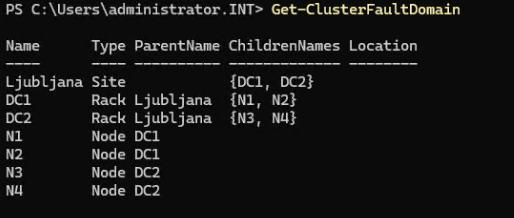
Before enabling Storage Spaces Direct you need to define Site, Racks and Nodes in those Racks. I have formed a typical site Ljubljana (Slovenian capital city) in that site I have created two racks in virtually two datacenters: DC1 and DC2 and I put those racks in site Ljubljana, then I added nodes in racks.

You can do it by using Powershell cmdlets:

New-ClusterFaultDomain -Name Ljubljana -FaultDomainType Site
New-ClusterFaultDomain -Name DC1 -FaultDomainType Rack
New-ClusterFaultDomain -Name DC2 -FaultDomainType Rack
Set-ClusterFaultDomain -Name DC1 -FaultDomain Ljubljana
Set-ClusterFaultDomain -Name DC2 -FaultDomain Ljubljana
Set-ClusterFaultDomain -Name N1 -FaultDomain DC1
Set-ClusterFaultDomain -Name N2 -FaultDomain DC1
Set-ClusterFaultDomain -Name N3 -FaultDomain DC2
Set-ClusterFaultDomain -Name N4 -FaultDomain DC2

At the end you should have something like this if you go with Powershell cmdlet: Get-ClusterFaultDomain

When this is done you can proceed with enabling Storage Spaces Direct where you will be first asked if you want to perform this action (like every time when you enabled it until now) but coupe of seconds later you will be prompted again as now, system understood that we have site and racks and nodes in different racks.

Prompt will inform you that: Set rack fault tolerance on S2D pool. This is normally racommended on setups with multiple racks continue with Y (Yes).

In couple of seconds you can already observe newly created Cluster Pool 1 that will consist of all disks from all nodes (in my case 32 disks as every node has 8 disks dedicated for Storage Spaces Direct).

As by official documentation you should perform update storage pool by using Powershell cmdlet:

Get-StoragePool S2D* | Update-StoragePool

You will be prompted with information that StoragePool will be upgraded to latest version and that this is irreversible action – proceed with Y (Yes).

Check that the version is now 29 by using:

(Get-CimInstance -Namespace root/microsoft/windows/storage -ClassName MSFT_StoragePool -Filter ‘IsPrimordial = false’).CimInstanceProperties[‘Version’].Value

Now you can proceed with forming disks – 4 copy mirror (for most important VMs) or 2 copy mirror (for less important workloads).

I modified a bit official examples for fixed and thin provisioned 2 way or 4 way mirror disks and I used this oneliners:

New-Volume -FriendlyName “FourCopyVolumeFixed” -StoragePoolFriendlyName S2D* -FileSystem CSVFS_ReFS –Size 20GB -ResiliencySettingName Mirror -PhysicalDiskRedundancy 3 -ProvisioningType Fixed -NumberOfDataCopies 4

New-Volume -FriendlyName “FourCopyVolumeThin” -StoragePoolFriendlyName S2D* -FileSystem CSVFS_ReFS –Size 20GB -ResiliencySettingName Mirror -PhysicalDiskRedundancy 3 –ProvisioningType Thin -NumberOfDataCopies 4

New-Volume -FriendlyName “TwoCopyVolumeFixed” -StoragePoolFriendlyName S2D* -FileSystem CSVFS_ReFS –Size 20GB -ResiliencySettingName Mirror -PhysicalDiskRedundancy 1 -ProvisioningType Fixed

New-Volume -FriendlyName “TwoCopyVolumeThin” -StoragePoolFriendlyName S2D* -FileSystem CSVFS_ReFS –Size 20GB -ResiliencySettingName Mirror -PhysicalDiskRedundancy 1 -ProvisioningType Thin

In next episode I will put some workloads on this nodes and simulate failures to see how Campus Cluster handles them.

More information also from my colleagues MVPs:
https://splitbrain.com/windows-server-campus-clusters/