Category Archives: Windows Server 2025

Windows Server 2025 – Storage Spaces Direct (S2D) Campus Cluster – part 1 – Preparation and deployment

And finally it is here! An update for Windows Server 2025 that we were waiting for and it is allowing us to create so called Campus Cluster. You can read more about it at the official Microsoft statement, here.

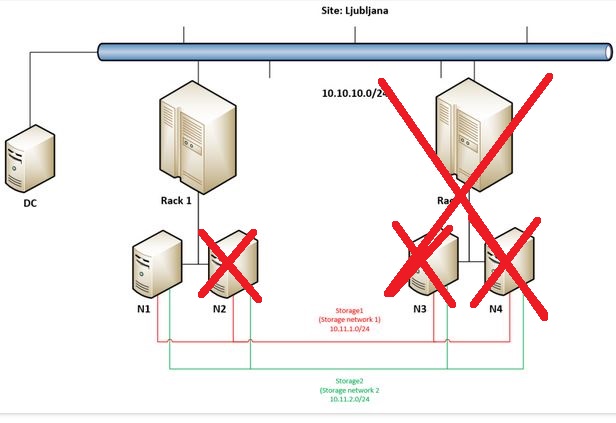
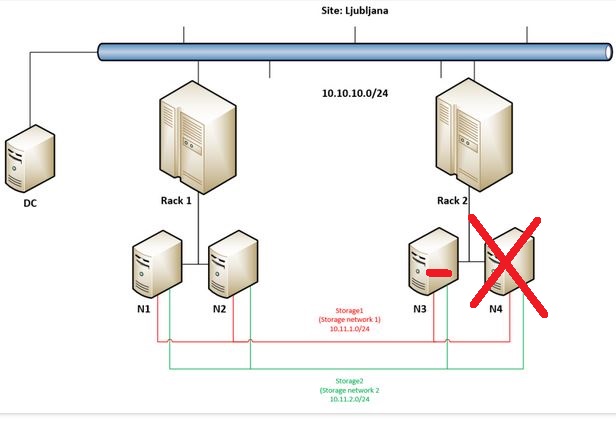
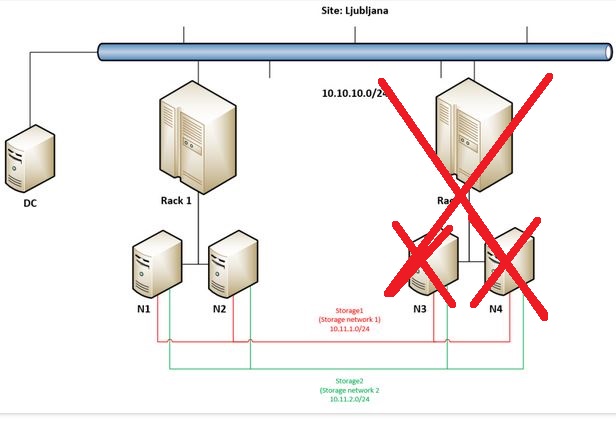
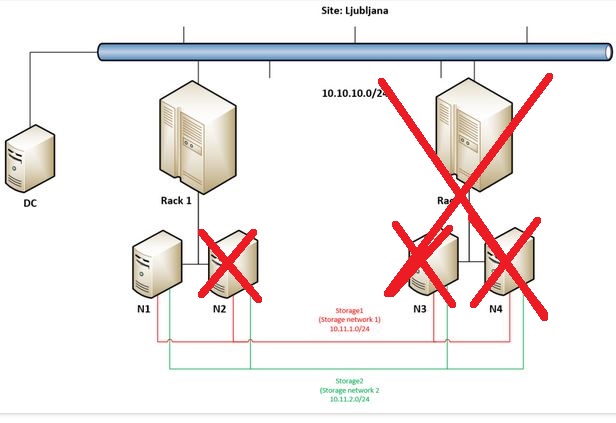
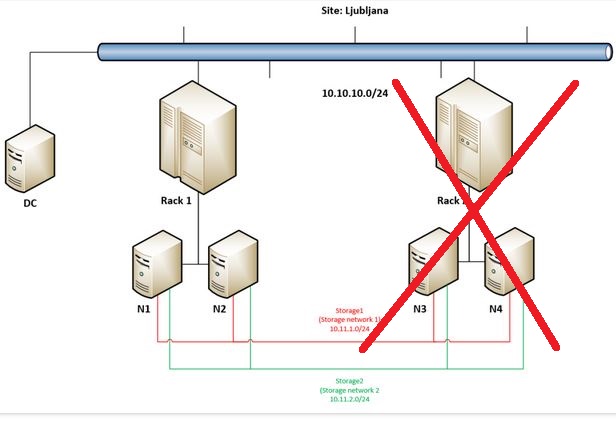
My demo setup looks like this – we have site called Ljubljana there are two racks Rack 1 and Rack 2 and in each rack we have two nodes (in Rack 1 we have N1 and N2 and in Rack 2 we have N3 and N4).

These four servers are domain joined (we have an extra VM called DC with Windows Server 2025 and Active Directory installed), they are connected to “LAN” network of the site with subnet 10.10.10.0/24 and each node has additional two network cards, one connected to a network that I call Storage network 1 with subnet 10.11.1.0/24 and Storage network 2 with subnet 10.11.2.0/24. Storage networks should be RDMA enabled (10, 25, 40, 100 Gbps) low latency, high bandwidth networks – don’t forget to enable Jumbo frames on them (if possible (it should be :))).

It looks like this:


To be able to setup hyper-converged infrastructure (HCI) with Storage Spaces Direct you need Failover Cluster feature and Hyper-V role installed on server. I am doing it via Powershell:

(This cmdlet will require reboot as Hyper-V is installed…)
Enable-WindowsOptionalFeature -Online -FeatureName Microsoft-Hyper-V -All

Install-WindowsFeature -Name Hyper-V -IncludeManagementTools

Install-WindowsFeature Failover-Clustering -IncludeManagementTools

When prerequisites are meet I will run cmdlet to form a cluster C1 with nodes N1-N4, with static IP address in the “LAN” segment and no storage (as I do not have any at this moment:

New-Cluster -Name C1 -Node n1, n2, n3, n4 -StaticAddress 10.10.10.10 -NoStorage


Before enabling Storage Spaces Direct you need to define Site, Racks and Nodes in those Racks. I have formed a typical site Ljubljana (Slovenian capital city) in that site I have created two racks in virtually two datacenters: DC1 and DC2 and I put those racks in site Ljubljana, then I added nodes in racks.

You can do it by using Powershell cmdlets:

New-ClusterFaultDomain -Name Ljubljana -FaultDomainType Site
New-ClusterFaultDomain -Name DC1 -FaultDomainType Rack
New-ClusterFaultDomain -Name DC2 -FaultDomainType Rack
Set-ClusterFaultDomain -Name DC1 -FaultDomain Ljubljana
Set-ClusterFaultDomain -Name DC2 -FaultDomain Ljubljana
Set-ClusterFaultDomain -Name N1 -FaultDomain DC1
Set-ClusterFaultDomain -Name N2 -FaultDomain DC1
Set-ClusterFaultDomain -Name N3 -FaultDomain DC2
Set-ClusterFaultDomain -Name N4 -FaultDomain DC2

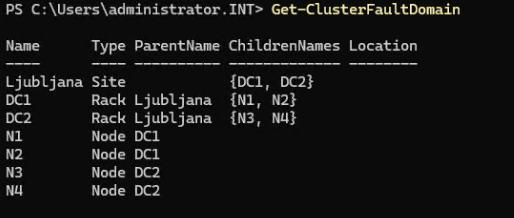
At the end you should have something like this if you go with Powershell cmdlet: Get-ClusterFaultDomain

When this is done you can proceed with enabling Storage Spaces Direct where you will be first asked if you want to perform this action (like every time when you enabled it until now) but coupe of seconds later you will be prompted again as now, system understood that we have site and racks and nodes in different racks.

Prompt will inform you that: Set rack fault tolerance on S2D pool. This is normally racommended on setups with multiple racks continue with Y (Yes).

In couple of seconds you can already observe newly created Cluster Pool 1 that will consist of all disks from all nodes (in my case 32 disks as every node has 8 disks dedicated for Storage Spaces Direct).

As by official documentation you should perform update storage pool by using Powershell cmdlet:

Get-StoragePool S2D* | Update-StoragePool

You will be prompted with information that StoragePool will be upgraded to latest version and that this is irreversible action – proceed with Y (Yes).

Check that the version is now 29 by using:

(Get-CimInstance -Namespace root/microsoft/windows/storage -ClassName MSFT_StoragePool -Filter ‘IsPrimordial = false’).CimInstanceProperties[‘Version’].Value

Now you can proceed with forming disks – 4 copy mirror (for most important VMs) or 2 copy mirror (for less important workloads).

I modified a bit official examples for fixed and thin provisioned 2 way or 4 way mirror disks and I used this oneliners:

New-Volume -FriendlyName “FourCopyVolumeFixed” -StoragePoolFriendlyName S2D* -FileSystem CSVFS_ReFS –Size 20GB -ResiliencySettingName Mirror -PhysicalDiskRedundancy 3 -ProvisioningType Fixed -NumberOfDataCopies 4

New-Volume -FriendlyName “FourCopyVolumeThin” -StoragePoolFriendlyName S2D* -FileSystem CSVFS_ReFS –Size 20GB -ResiliencySettingName Mirror -PhysicalDiskRedundancy 3 –ProvisioningType Thin -NumberOfDataCopies 4

New-Volume -FriendlyName “TwoCopyVolumeFixed” -StoragePoolFriendlyName S2D* -FileSystem CSVFS_ReFS –Size 20GB -ResiliencySettingName Mirror -PhysicalDiskRedundancy 1 -ProvisioningType Fixed

New-Volume -FriendlyName “TwoCopyVolumeThin” -StoragePoolFriendlyName S2D* -FileSystem CSVFS_ReFS –Size 20GB -ResiliencySettingName Mirror -PhysicalDiskRedundancy 1 -ProvisioningType Thin

In next episode I will put some workloads on this nodes and simulate failures to see how Campus Cluster handles them.


Inaccessible Boot Device – Windows Server 2012 R2 on Windows Server 2025 Hyper-V (updated september 2025)

For more than a month I was trying to get an old Windows Server 2012 R2 VM running on fully patched Windows Server 2025 with Hyper-V. In September 2025 I needed to speed up this process so I was searching the internet for a possible solution. In fact something has changed (and deployed via Windows Update) on Windows Server 2025 and/or Hyper-V that causes this problem – I have also went through this thread but adding new SCSI controller did not help..

After removing (in September 2025) update KB5063878 Windows Server 2012 R2 VM booted without problems:

Monitor Hyper-V hosts and/or clusters for VM checkpoints using Powershell (backup leftovers, forgotten checkpoints …)

As many backup solutions use system of checkpoints (there are not just standard type of Checkpoints that you can do manually by using Hyper-V Manager (or Powershell) but also other types – like Recovery, Planned, Missing, Replica, AppConsistentReplica, and SyncedReplica (as per documentation).

Sometimes backup solutions are not able to clean up (Recovery) checkpoints after backup was finished so you might even not know that you have your VMs with open checkpoints in production. It can be problematic as it can fill your disk space on your hosts and then you can have problems when you remove this “orphaned” checkpoints and they need to merge to their parent VHDX.

I have created a simple Powershell script that can send you an e-mail once per day just to make sure that you can have under control situation regarding Checkpoints on your infrastructure. If there are no checkpoints there will be just a short e-mail, if there are checkpoints you will get table with VM name and Checkpoints.

To trigger this check you can use Task Scheduler and make a simple daily task like described in one of my early articles, here.

$VMCheckpoint = $null
$VMCheckpoint = get-vm | Get-VMCheckpoint
$VMCheckpointBody = get-vm | Get-VMCheckpoint | Select VMName, Name | ConvertTo-Html

If ($VMCheckpoint -eq $null) {
    $EmailTo = "it@mycompany.com"
    $EmailFrom = "hyper-v-checkpoints@mycompany.com"
    $Subject = "HYPER-VHOST01 - No Hyper-V Checkpoints found." 
    $Body = "Hi, IT! <br><br><br>There are no checkpoints on host HYPER-VHOST01. We will check again in 24 hours! <br><br><br>Armadillo Danilo"
    $SMTPServer = "smtp.mycompany.com" 
    $SMTPMessage = New-Object System.Net.Mail.MailMessage($EmailFrom,$EmailTo,$Subject,$Body)
    $SMTPMessage.IsBodyHTML=$true
    $SMTPClient = New-Object Net.Mail.SmtpClient($SmtpServer, 587) 
    $SMTPClient.EnableSsl = $true
    $SMTPClient.Credentials = New-Object System.Net.NetworkCredential("smtpauthusername", "smtpauthpassword"); 
    $SMTPClient.Send($SMTPMessage)
}

Else {
    $EmailTo = "it@mycompany.com"
    $EmailFrom = "hyper-v-checkpoints@mycompany.com"
    $Subject = "HYPER-VHOST01 - Warning! Hyper-V Checkpoints found!" 
    $Body = $VMCheckpointBody
    $SMTPServer = "smtp.mycompany.com" 
    $SMTPMessage = New-Object System.Net.Mail.MailMessage($EmailFrom,$EmailTo,$Subject,$Body)
    $SMTPMessage.IsBodyHTML=$true
    $SMTPClient = New-Object Net.Mail.SmtpClient($SmtpServer, 587) 
    $SMTPClient.EnableSsl = $true
    $SMTPClient.Credentials = New-Object System.Net.NetworkCredential("smtpauthusername", "smtpauthpassword"); 
    $SMTPClient.Send($SMTPMessage)
}

Windows Server 2025 – Stretched cluster with S2D

As we are expecting final release of Windows Server 2025 we can take a look at Stretched cluster capability in combination with Storage Spaces Direct (S2D).

In this quick demo I have setup a 4 node S2D stretched cluster between two Active Directory Sites and Services subnets (as Failover Cluster is using subnets in ADDS to determine in which site nodes are residing).

In my case I have Default First Site Name (Ljubljana) and another site called Portoroz. In Ljubljana our nodes are in segment 10.5.1.0/24 and in Portoroz in 10.5.2.0/24

We have two virtual machines located in a dedicated (stretched) VLAN (5) so they are in same subnet no matter on which node they are running.

Two VMs have IPs: 10.5.5.111 (vm1) and 10.5.5.112 (vm2) that I am live migrating to remote nodes (sitebn1 / sitebn2).

We have two options on how to deploy and use such scenario – we can use it in active / active mode so VMs and CSVs are on both sites and CSVs (synchronous) replicated to other pair of nodes. There is also the possibility to use it in active / passive mode so by just replicating CSVs from site 1 to site 2.

For demo purposes I have reduced the time that cluster starts its processes to establish availability of failed resources from 240 (4 minutes) seconds to 10 seconds.
Value of 240 seconds is there since Windows Server 2016 and introduction of so called compute resiliency that allowed this 4 minutes for nodes to return from let say network outage or something like that. You can reduce this timer by using Powershell:

(Get-Cluster).ResiliencyDefaultPeriod = ValueInSeconds

In the video you can see that I am live migrating VM first to site 2 and afterwards turning off the nodes in site 2. In around 15 seconds VM2 is available again this time on CSV (volume02) that was brought online on site 1.


I think this concept can be interesting for many customers and I am really looking forward for the final release of Windows Server 2025! Good job, Microsoft!

AD-less live migration in Windows Server 2025 (preview)

Today I was playing around with Windows Server 2025 (preview). One interesting feature is that is now possible to built Hyper-V cluster (in this case with “traditional” storage (I have presented it via iSCSI)) without Active Directory domain.

In previous versions it was possible to built so called workgroup clusters but in Hyper-V context it was not recommended and also a bit useless as it supported only quick and not live migration.

Well Microsoft did a great job by supporting workgroup clusters also with Hyper-V.

Here is a video that shows two node workgroup cluster and live migration of a small Ubuntu VM. 🙂 Enjoy!