Category Archives: MS Windows server

“Demystifying” Windows server 2012 Hyper-V 3.0 network virtualization – part II (two hosts / same subnet)

Today I was presenting @ bleedingedge.si conference… My session was about Windows server 2012 / Hyper-V 3.0 network virtualization.


I have recorded this sequence of commands so you can see the configuration and how it works:

http://www.screencast.com/t/wsDAKpKumlSm – Hyper-V 3.0 – Network virtualization Part 1

http://www.screencast.com/t/q3G9SViY6gId – Hyper-V 3.0 – Network virtualization Part 2

http://www.screencast.com/t/bxOznDklp – Hyper-V 3.0 – Network virtualization Part 3


In my demo environment I have:

Two Windows server 2012 with Hyper-V 3.0 role installed

HV01 / Only one network card so it is used by VMs and host (management) with IP 172.31.200.11
HV02 / Only one network card so it is used by VMs and host (management) with IP 172.31.200.12

On each host there are TWO virtual machines:

On HV01 there are:

– Blue01 (10.10.10.11 with STATIC MAC*address AAAAAAAAAA01)
– Red01 (10.10.10.21 with STATIC MAC*ddress CCCCCCCCCC01)

On HV02 there are:

– Blue02 (10.10.10.12 with STATIC MAC*address AAAAAAAAAA02)
– Red02 (10.10.10.22 with STATIC MAC*address CCCCCCCCCC02)

*You should DEFINE STATIC MAC on Virtual Machine network configuration – you must not use dynamicaly assigned MAC address (System center Virtual machine manager 2012 SP1 will do that for you automaticaly)

By defalt all machines are able to ping themselfs… We want to isolate Blue network so only Blue01 and Blue02 can ping each other and Red network so only Red01 and Red02 can ping each other.

First thing we need to do is to enable ms_netvm component on PHYSICAL NIC! (not on virtual switch created NIC!)
Enable-NetAdapterBinding “Ethernet” -ComponentID ms_netwnv

Second thing is that we need to create Lookup records on both Hyper-V servers. You should copy/paste this script on both hosts:
New-NetVirtualizationLookupRecord -CustomerAddress “10.10.10.11” -ProviderAddress “172.31.200.11” -VirtualSubnetID “5001” -MACAddress “AAAAAAAAAA01” -Rule “TranslationMethodEncap”
New-NetVirtualizationLookupRecord -CustomerAddress “10.10.10.12” -ProviderAddress “172.31.200.12” -VirtualSubnetID “5001” -MACAddress “AAAAAAAAAA02” -Rule “TranslationMethodEncap”

Then you need to create Costumer Route – on both Hyper-V hosts:
New-NetVirtualizationCustomerRoute -RoutingDomainID “{11111111-2222-3333-4444-000000005001}” -VirtualSubnetID “5001” -DestinationPrefix “10.10.10.0/24” -NextHop “0.0.0.0” -Metric 255

Then you need to add provider address to PHYSICAL NIC – you need to find out interface index by using get-netadapter!

In my example on HV01:
New-NetVirtualizationProviderAddress -InterfaceIndex 12 -ProviderAddress “172.31.200.11” -PrefixLength 24
New-NetVirtualizationProviderRoute -InterfaceIndex 12 -DestinationPrefix “0.0.0.0/0” -NextHop “172.31.200.1”

and on HV02:
New-NetVirtualizationProviderAddress -InterfaceIndex 12 -ProviderAddress “172.31.200.12” -PrefixLength 24
New-NetVirtualizationProviderRoute -InterfaceIndex 12 -DestinationPrefix “0.0.0.0/0” -NextHop “172.31.200.1”

When this is done we need to configure VirtualSubnetID on virtual machines:
On HV01 (where Blue01 vm is running) we should do:
Get-VMNetworkAdapter -VMName Blue01 | where {$_.MacAddress -eq “AAAAAAAAAA01”} | Set-VMNetworkAdapter -VirtualSubnetID 5001

and on HV02 (where Blue02 vm is running) we should do:
Get-VMNetworkAdapter -VMName Blue02 | where {$_.MacAddress -eq “AAAAAAAAAA02”} | Set-VMNetworkAdapter -VirtualSubnetID 5001

Now network virtualization will take place and Blue01 will only be able to ping Blue02 and vice-versa. Red01 and Red02 are outside this VitualSubnet. In video you can see network monitoring where you can detect GRE network between hosts.
In video I also do live migration so I move Blue02 machine from HV02 to HV01 so you can see that network virtualization is aware of live migration and moving machines between HV hosts in the same network or also cross premise… I will cover that in next part! 🙂

Let’s virtualise!

Hyper-V 3.0 resource metering…

If you are hosting or if you just want to get the idea how is your Windows server 2012 with hyper-v role or hyper-v 3.0 server utilised you can use the hyper-v 3.0 resource metering powershell cmdlets…

First you need to enable metering on your host:

Get-VM -ComputerName hv01 | Enable-VMResourceMetering

Then you can choose the VM that you want to get info for:

Get-VM -ComputerName hv01 -Name VMName | Measure-VM

or differently formated:

Get-VM -ComputerName hv01 | Measure-VM | Sort-Object -Property AverageProcessorUsage -Descending | Select-Object -First 5 -Property ComputerName,VMName,AverageProcessorUsage

More commands you can find on:

http://csharpening.net/?p=967

But that’s “ugly” output 🙂 if you want to have nice graphical view of your stats you can use freeware:

http://poshstats.net/ – great software!

Lets meter!


“Demystifying” – Windows server 2012 Hyper-V 3.0 network virtualization – part I (single host)

During my preparations for Windows server 2012 I was wondering if I can show to the attendees practical example of new multi-tenant feature that comes with Windows server 2012 – network virtualization that allows you to have multiple servers that use same ip subnet completely isolated. It is a common scenario in datacenters that we were solving by using VLANs that made configuration complex and sometimes chaotic 🙂

Microsoft provides two technologies to solve network virtualization in multi tenant cloud – IP rewrite and NVGRE solution.

You can read in detail what are the differences between two mechanisms. IP rewrite and NVGre

There are two cool examples on Technet that provide powershell scripts to do the job:
Simple Hyper-V Network Virtualization Demo
Simple Hyper-V Network Virtualization Script with Gateway

There are some “prerequisites” in your datacenter that should be meet.

Network virtualization is working only on “non vlaned virtual switches” so you need to have “untagged” connection between virtual switches on different hosts.

Virtual machine should be connected without vlan option in network card configuration.

I spent almost two hours to figure it out 🙂

So what have I used:

Two Windows server 2012 with Hyper-V and both domain joined.

I have created only one virtual switch – external – binded to a single physical NIC on both servers.

I have created two virtual machines on both servers (so four in total) named:

On host 1:
07 – Windows 2012 – network isolation blue01
08 – Windows 2012 – network isolation red01

On host 2:
07 – Windows 2012 – network isolation blue02
08 – Windows 2012 – network isolation red02

Then I run this two commands on both servers:

Disable-NetAdapterBinding “vEthernet (Microsoft Network Adapter Multiplexor Driver – Virtual Switch)” -ComponentID “ms_netwnv”
Enable-NetAdapterBinding “vEthernet (Microsoft Network Adapter Multiplexor Driver – Virtual Switch)” -ComponentID “ms_netwnv”

Then on host 1 I run this commands:

Configuration for Blue network:

New-NetVirtualizationLookupRecord -VirtualSubnetID “5001” -CustomerAddress “x.x.x.x” -ProviderAddress “y.y.y.y” -MACAddress “00155DE3F606” -Rule TranslationMethodEncap

New-NetVirtualizationCustomerRoute -RoutingDomainID “{11111111-2222-3333-4444-000000005001}” -VirtualSubnetID “5001” -DestinationPrefix “10.0.0.0/24” -NextHop “0.0.0.0” -Metric 255

Set-VMNetworkAdapter -VirtualSubnetId 5001 -VMName “07 – Windows 2012 – network isolation blue01”

x.x.x.x is internal IP in virtual machine
y.y.y.y is external IP that will be used to transport packets to other host (Hyper-V IP on “shared” virtual swtich)

Configuration for Red network:

New-NetVirtualizationLookupRecord -VirtualSubnetID “6001” -CustomerAddress “x.x.x.x” -ProviderAddress “y.y.y.y” -MACAddress “00155DE3F607” -Rule TranslationMethodEncap

New-NetVirtualizationCustomerRoute -RoutingDomainID “{11111111-2222-3333-4444-000000006001}” -VirtualSubnetID “6001” -DestinationPrefix “10.0.0.0/24” -NextHop “0.0.0.0” -Metric 255

Set-VMNetworkAdapter -VirtualSubnetId 6001 -VMName “08 – Windows 2012 – network isolation red01”

x.x.x.x is internal IP in virtual machine (if you want to see network virtualization in action you can use same internal IP as blue machine – this is multi tenancy 🙂 )
y.y.y.y is external IP that will be used to transport packets to other host (Hyper-V IP on “shared” virtual swtich) (it is the same as in blue network)

On host 2 I run these commands:

Configuration for Blue network:

New-NetVirtualizationLookupRecord -VirtualSubnetID “5001” -CustomerAddress “x.x.x.x” -ProviderAddress “z.z.z.z” -MACAddress “00155DE3F703” -Rule “TranslationMethodEncap”

New-NetVirtualizationCustomerRoute -RoutingDomainID “{11111111-2222-3333-4444-000000005001}” -VirtualSubnetID “5001” -DestinationPrefix “10.0.0.0/24” -NextHop “0.0.0.0” -Metric 255

Set-VMNetworkAdapter -VirtualSubnetId 5001 -VMName “07 – Windows 2012 – network isolation blue02”

x.x.x.x is internal IP in virtual machine (in the same subnet as IPs on virtual machines on host 1 (if you want to see network virtualization in action you can use same internal IP as blue machine – this is multi tenancy 🙂 )
z.z.z.z is external IP that will be used to transport packets to other host (Hyper-V IP on “shared” virtual swtich)

Configuration for Red network:

New-NetVirtualizationLookupRecord -VirtualSubnetID “6001” -CustomerAddress “x.x.x.x” -ProviderAddress “z.z.z.z” -MACAddress “00155DE3F704” -Rule “TranslationMethodEncap”

New-NetVirtualizationCustomerRoute -RoutingDomainID “{11111111-2222-3333-4444-000000006001}” -VirtualSubnetID “6001” -DestinationPrefix “10.0.0.0/24” -NextHop “0.0.0.0” -Metric 255

Set-VMNetworkAdapter -VirtualSubnetId 6001 -VMName “08 – Windows 2012 – network isolation red02”

x.x.x.x is internal IP in virtual machine (in the same subnet as IPs on virtual machines on host 1 (if you want to see network virtualization in action you can use same internal IP as blue machine – this is multi tenancy 🙂 )
z.z.z.z is external IP that will be used to transport packets to other host (Hyper-V IP on “shared” virtual swtich) (it is the same as in blue network)

It should start ping the machine on the other host… Remeber – this parameters “live migrate” with machine – so you can freely move the machine around your environment without thinking about what will happen to your network configuration! Great feature!

Example of configuration – blue01 (in background you see that machine is pinging other machine (blue02)

Config example: Blue02

In this screenshoot you can see machines migrated to a single host but still isolated the Powershell command will give you overview of VirtualSubnetID configuration:

Get-VM | Get-VMNetworkAdapter | fl VMName,VirtualSubnetID

Site-to-Site VPN between your infrastructure and Windows Azure – using Mikrotik

While doing my demos for Windows server 2012 readiness I wanted to show my attendees also virtual machines that you can run now on Windows Azure (www.windowsazure.com – here you can try virtual machines and other Azure features for 180 days!).

Okey, that’s not a problem you go to the virtual machines tab and create machine… But I wanted to connect my infrastructure with Azure so I will be able to experience real hybrid-cloud solution with some services in my datacenter and some servcies in Microsoft cloud

If you want to do that you need to create new network configuration in network tab on Azure portal.

This procedure is well documented on: http://msdn.microsoft.com/en-us/library/windowsazure/jj156210#bkmk_ConfigVPN

But at the end you can download configuration for Cisco or Juniper… From that configuration I “extracted” the important steps to configure it on Mikrotik 750.

On your Mikrotik you need to go to IP / IPsec menu and then:

– configure peers

after that you need to configure IPSec tunnel parameters:

In the fist line you define your local subnet that you have in your datacenter, below you eneter subnet that you defined in Azure network configuration…

And in Action tab of IPsec policy you define that you want to create tunnel and you need to define endpoint IP addresses again…

Connection established!!!

I started to ping from my Azure Virtual machine to AD server in my organization…

and as seen from Azure portal perspective:

It is easy to configure virtual machines on Windows Azure platform and also very easy to establish site-to-site VPN connection – and it works also with “lower” budged routers and not only by using Cisco or Juniper.

I encourage you to try Microsoft Azure – you can try it for 3 months

See ya next time! 🙂

Getting ASP.NET – C# running a System center Orchestartor 2012 Runbook and survive :)

I wanted to create ASP.NET webpage with three simple fields name, surname and mobile and I wanted Orchestrator behind to create Exchange 2010 mailbox on my Exchange server…
My friends helped me out by giving me suggestions and help – I want to share this knowledge with you now…

What we have:
Exchange 2010 server on one server
SC 2012 – Orchestrator – on different server – with Exchange 2010 console instaled + SP2 applied

My friend Saso created a ps1 script that creates user in Exchange 2010 (with address book policy, active sync policy…) that I use on Exchange 2010 server by inserting a line of comma separated values name,surname,password.

I wanted this script to be run from Orchestrator server – so first thing you need to do if you want to run PS script against Exchange 2010 server you need to install Exchange 2010 console on Orchestartor! Hey! You need to install also SP2 if you want full functionality of Exchange Powershell Snapin!

You can not run Exchange Snapin and powershell scripts directly – Jure has more info how you can do it in Orchestrator

When this thing worked (I forgot SP2 for Exchange 2010 on Orchestrator and I lost 2 hours to figure it out! 🙂 ) I have started to write code for my website where I want to trigger my runbook with parameters…

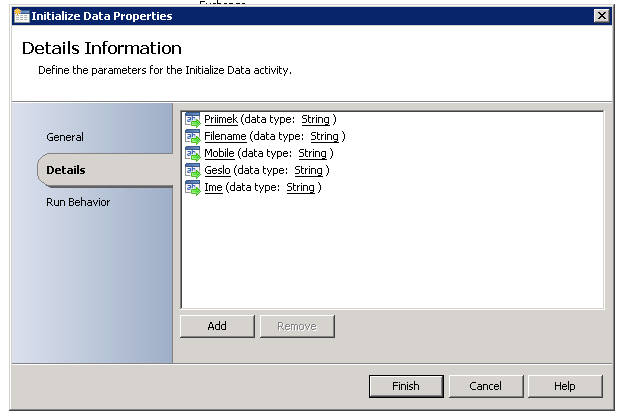
I have fist set input parameters in my Runbook…

After that I have folowed this article to create costum class file (search for part Creating the custom interface).

So I created scorch.sc (name it however you want in a previous step) and imported it in my Visual Studio evironment…

You need to place it:

You should comment this line to get it work in your project…

and finaly you can go to your project and start coding…

1. Put the URL of your Orch web service
2. Enter credentials
3. Define the name of your runbook
4. runbookpars [X] – X is ID of the input parameter in rubook

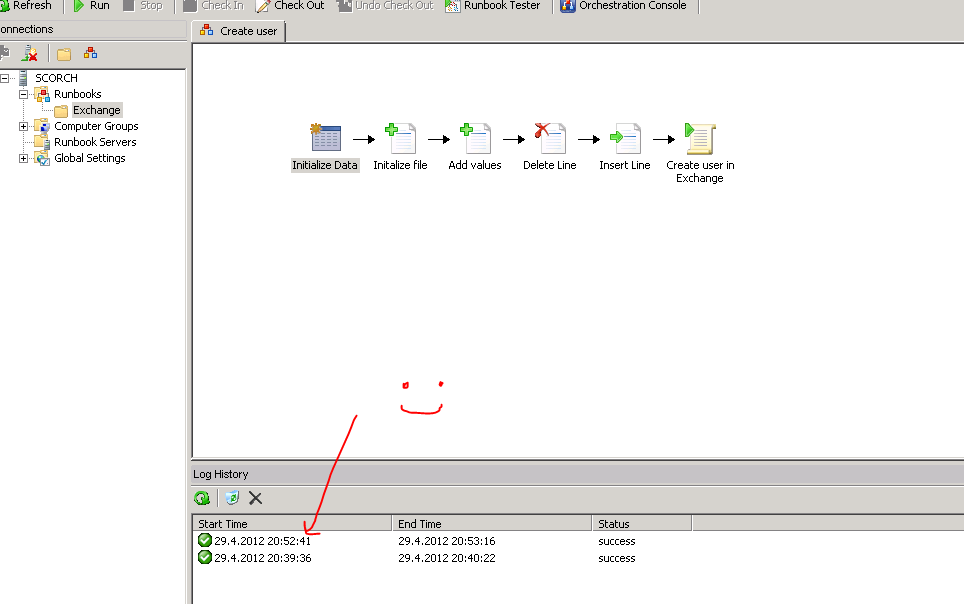
and finaly you should be able to run your script…

I find System center Orchestator 2012 as fantastic product that can realy help you automate your IT processes…

So guys let’s automate! 🙂

Help:
http://msdn.microsoft.com/en-us/library/hh921685.aspx – thanks to Damien
http://blogs.technet.com/b/neilp/archive/2012/02/14/sql-cluster-with-custom-front-end.aspx
http://www.purgar.net/category/orchestrator/ – thanks to Jure
voodoo C# help – thanks to Miha

Hyper-V virtual machine backup script…

Today my friend Marko Cepe sent me his VBS script that does great job to backup virtual machines that are running on Hyper-V.
This script does shut down virtual machine by sending shut down command to machine using integration services, then it waits virtual machine to enter stopped state, after that it does export of the machine and turns the machine back on.

Usage:

C:SKRIPTE> ExportVM.vbs VMName ExportDirectory

Example:

C:SKRIPTE> ExportVM.vbs TestVM X:BackupTestVM

Click, download and enjoy the script.

Comments appreciated…

My contribution to IPv6 day – Configuring IPv6 in Windows server 2008 R2 – video tutorial

My contribution to IPv6 day will be this small “lab” test where I will show you some basic IPv6 configuration that you can do with Windows server 2008 R2.
Here are the videos:

IPv6 day – configuring IPv6 in Windows server 2008 R2 part 1 – http://www.screencast.com/t/Ifj2lx4hTG
IPv6 day – configuring IPv6 in Windows server 2008 R2 part 2 – http://www.screencast.com/t/PSf3q5yr4BF

What do we have in our LAB?

1. Windows server 2008 R2 with two network cards:
External – with IPv6, gateway and DNS configured
Internal – with IPv6 address only

External IP has internal class static routed on our Cisco router in front of Windows server external card.

2. Windows 7 machine with single network card that is connected to the same switch as servers’ internal card.

What will we do:

In the fist video:

First we will start with some basic checking of network configuration on server.
Then we will run netsh (I run a command prompt with “Run as administrator”) and go to
netsh / interface / ipv6

with command

show route we can see ipv6 routes currently configured – we would like to enable publishing of route that I have highlighted in the video.

set route PREFIX INTERFACE_NUMBER publish=yes

then we will run an command to enable advertising, to disable address management (so Windows 7 will generate IPv6 without help od DHCPv6) (M flag) and we will disable other stateful configuration (O flag).

set interface INTERFACE_NUMBER adv=enabled managed=disabled other=disabled

Meanwhile we are checking IPv6 connectivity from our Windows 7 machine… Windows 7 is still unable to ping outside the network…

well we need to configure some other stuff on server now… we will enable forwarding on our two interfaces (External and Internal)

set interface INTERFACE_NUMBER forwarding=enabled

still no connectivity from win 7? 🙂

last step that we need to do on our server is to advertise default route to our clients

set interface INTERFACE_NUMBER advertisedefaultroute=enabled

So our Windows 7 sudenly start to recive ICMPv6 echo replyes from some IPv6 machine outside our network WUHU! 🙂

But Windows 7 machine is not able to resolve hostnames to IPV6 addresses – this is becouse we have now global IPv6 address configured and default gateway – so we have connectivity but we are not able to resolve hostnames as we do not have any DNS servers to do that.

On Windows server 2008 R2 I will start the installation of two roles – first DHCP role which I wil configure later and DNS role.

When the roles are installed I will configure so called forwarders on my DNS server so my clients will be able to use my server as a DNS server for their queries.

In the second video:

I will first flush IPv6 configuration on Windows 7 machine by using command
ipconfig /release6
ipconfig /renew6
(is the opposite command to regain IPv6 configuration)

Secondly I will configure DHCPv6 server by starting New Scope wizard under IPv6 settings…

I will configure prefix – this ipv6 prefix of Internal network card

Skip the exceptions and activate the scope…

You will see that Windows 7 still did not ask DHCPv6 servers for address this is becouse managed flag is set to disabled on server so…

in netsh / interface / ipv6 we need to activate managed flag by inserting this command:

set interface INTERFACE_NUMBER managed=enabled

Our Windows 7 machine can now be found in IPv6 leases on our DHCP server – but still it is unable to ping hostnames on the internet… This is becouse our DHCPv6 server is not giving DNS servers as scope options and Other stateful flag is disabled.

So we first need to add DNS Recursive Names Server IPv6 Address in our Scope options and then use netsh command:

set interface INTERFACE_NUMBER other=enabled

Yeeepppeee!!! Our Windows 7 is ready to ping hostnames on the internet – so it is able to surf the IPV6 internet…

When I am finishing this article is 8.6.2011 23:37 – this is my small contribution to IPv6 day so happy IPv6 day to all of you! 🙂

Get IP address of virtual machines running on Hyper-V – FIXED!

Big thank you – goes to Max Trinidad my fellow MVP from Powershell group…
Here is errorless script – much better than mine! 🙂
Copa, paste and save as .ps1 – then run on your Hyper-V server and you will get IP’s of your virtual machines…

Set-ExecutionPolicy -ExecutionPolicy RemoteSigned

## – Use Line below to list all your Virtualization Class
#get-wmiobject -namespace “root/virtualization” -list

## – Load filter (or function first)
filter Import-CimXml{

    $CimXml = [Xml]$_
    $CimObj = New-Object -TypeName System.Object
   
    foreach ($CimProperty in $CimXml.SelectNodes(“/INSTANCE/PROPERTY”)){
        if ($CimProperty.Name -eq “Name” -or $CimProperty.Name -eq “Data”){
            $CimObj | Add-Member -MemberType NoteProperty -Name $CimProperty.NAME -Value $CimProperty.VALUE
        }
    }
   
    $CimObj
}

## – Collect WMI Virtual information
$getWmiVirtual = Get-WmiObject -Namespace “rootvirtualization” -Query “Select * From Msvm_ComputerSystem” | sort-object elementname

## – Build your results from your collected objects
ForEach($v in $getWmiVirtual){
    $vm = $v.ElementName;
    $VmObj = Get-WmiObject -Namespace “rootvirtualization” -Query “Select * From Msvm_ComputerSystem Where ElementName=’$vm'”;
    $KvpObj = Get-WmiObject -Namespace “rootvirtualization” -Query “Associators of {$VmObj} Where AssocClass=Msvm_SystemDevice ResultClass=Msvm_KvpExchangeComponent”;
    if($KvpObj.GuestIntrinsicExchangeItems -ne $null){
        write-host $vm;
        $KvpObj.GuestIntrinsicExchangeItems | Import-CimXml | where {$_.NAME -match “NetworkAddressIPv4”} | ft;
    }
}

## – End of Script

Get IP address of virtual machines running on Hyper-V

I have been searching for an easy solution to somehow “scan” virtual machines and get their IP addresses becouse sometimes you need to find your virtual machines and it is more practical to somehow get a whole list of machines + IPs in stead of loging in from machne to machine and check IP… Well it can be done using Powershell… I have encountered an article but the problem is that here you need to put machine name on which you want to get data… I modified this script a bit so it looks like:

Get-WmiObject -Namespace rootvirtualization -Query “Select * From Msvm_ComputerSystem”| sort-object elementname | ForEach-Object {$vm = $_.Elementname
write-host $vm
filter Import-CimXml
{
    $CimXml = [Xml]$_
    $CimObj = New-Object -TypeName System.Object
    foreach ($CimProperty in $CimXml.SelectNodes(“/INSTANCE/PROPERTY”))
    {
if ($CimProperty.Name -eq “Name” -or $CimProperty.Name -eq “Data”)
{

         $CimObj | Add-Member -MemberType NoteProperty -Name $CimProperty.NAME -Value $CimProperty.VALUE

}
    }
    $CimObj
}
$VmObj = Get-WmiObject -Namespace rootvirtualization -Query “Select * From Msvm_ComputerSystem Where ElementName=’$vm'”
$KvpObj = Get-WmiObject -Namespace rootvirtualization -Query “Associators of {$VmObj} Where AssocClass=Msvm_SystemDevice ResultClass=Msvm_KvpExchangeComponent”
$KvpObj.GuestIntrinsicExchangeItems | Import-CimXml
} | where {$_.NAME -match “NetworkAddressIPv4”} | ft
read-host

So… Copy paste this script to an text file and save it as getip.ps1 and run it using powershell – it does need any other modules you should only run it on Windows Server where you have Hyper-V role installed… (I do not remember but I think you should enable execution policy for ps1 scripts… If you have truble executing your ps1 check here…)

By the way… This script has an error first virtual machine name will not fit in table (I do not know why 🙂 ) and you will get an error when this script will try to analyze your Hyper-V host machine… I do not know how to solve this two errors if someone out there solves it please provide feedback. 🙂 Thank you!