Author Archives: manojlovicl

Windows Server 2025 – Storage Spaces Direct (S2D) Campus Cluster – part 1 – Preparation and deployment

And finally it is here! An update for Windows Server 2025 that we were waiting for and it is allowing us to create so called Campus Cluster. You can read more about it at the official Microsoft statement, here.

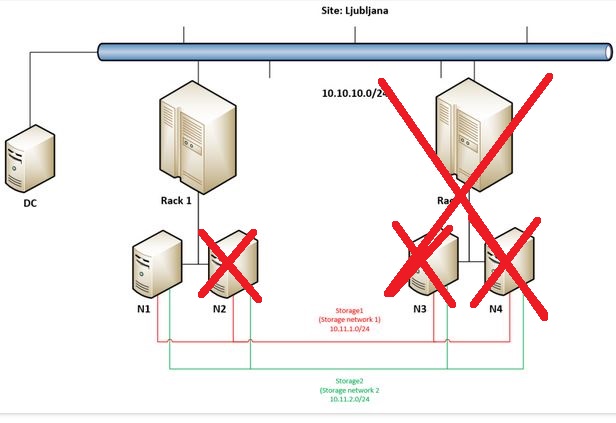
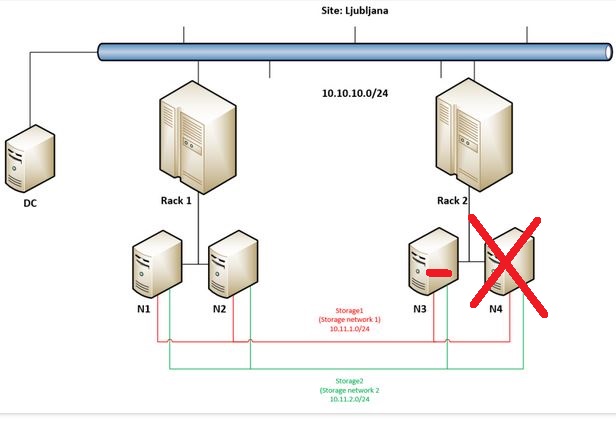
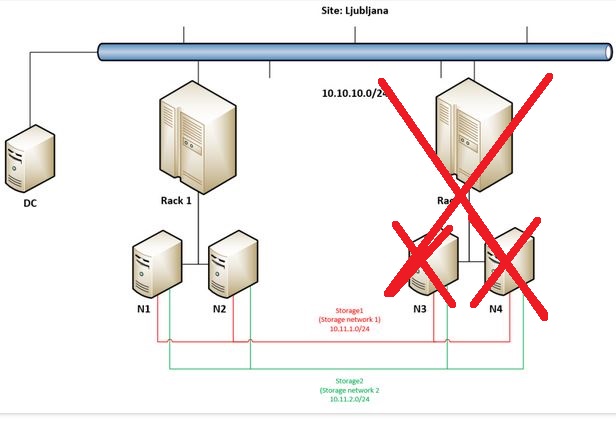
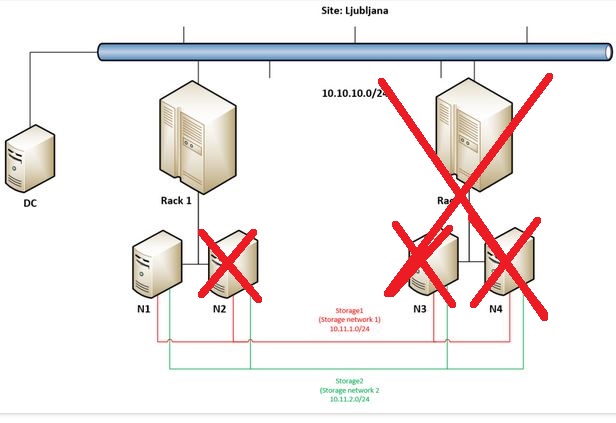
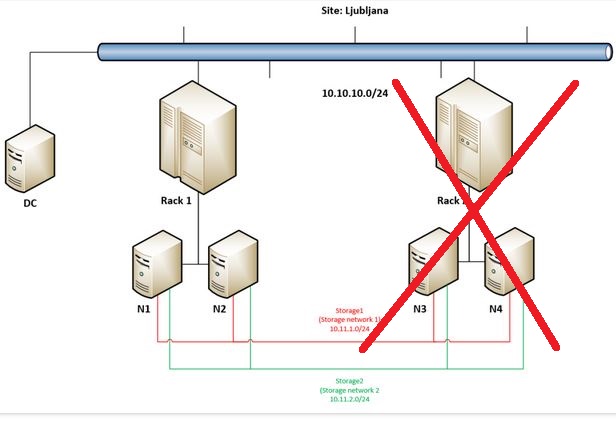
My demo setup looks like this – we have site called Ljubljana there are two racks Rack 1 and Rack 2 and in each rack we have two nodes (in Rack 1 we have N1 and N2 and in Rack 2 we have N3 and N4).

These four servers are domain joined (we have an extra VM called DC with Windows Server 2025 and Active Directory installed), they are connected to “LAN” network of the site with subnet 10.10.10.0/24 and each node has additional two network cards, one connected to a network that I call Storage network 1 with subnet 10.11.1.0/24 and Storage network 2 with subnet 10.11.2.0/24. Storage networks should be RDMA enabled (10, 25, 40, 100 Gbps) low latency, high bandwidth networks – don’t forget to enable Jumbo frames on them (if possible (it should be :))).

It looks like this:


To be able to setup hyper-converged infrastructure (HCI) with Storage Spaces Direct you need Failover Cluster feature and Hyper-V role installed on server. I am doing it via Powershell:

(This cmdlet will require reboot as Hyper-V is installed…)
Enable-WindowsOptionalFeature -Online -FeatureName Microsoft-Hyper-V -All

Install-WindowsFeature -Name Hyper-V -IncludeManagementTools

Install-WindowsFeature Failover-Clustering -IncludeManagementTools

When prerequisites are meet I will run cmdlet to form a cluster C1 with nodes N1-N4, with static IP address in the “LAN” segment and no storage (as I do not have any at this moment:

New-Cluster -Name C1 -Node n1, n2, n3, n4 -StaticAddress 10.10.10.10 -NoStorage


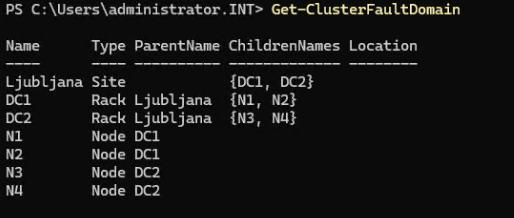
Before enabling Storage Spaces Direct you need to define Site, Racks and Nodes in those Racks. I have formed a typical site Ljubljana (Slovenian capital city) in that site I have created two racks in virtually two datacenters: DC1 and DC2 and I put those racks in site Ljubljana, then I added nodes in racks.

You can do it by using Powershell cmdlets:

New-ClusterFaultDomain -Name Ljubljana -FaultDomainType Site
New-ClusterFaultDomain -Name DC1 -FaultDomainType Rack
New-ClusterFaultDomain -Name DC2 -FaultDomainType Rack
Set-ClusterFaultDomain -Name DC1 -FaultDomain Ljubljana
Set-ClusterFaultDomain -Name DC2 -FaultDomain Ljubljana
Set-ClusterFaultDomain -Name N1 -FaultDomain DC1
Set-ClusterFaultDomain -Name N2 -FaultDomain DC1
Set-ClusterFaultDomain -Name N3 -FaultDomain DC2
Set-ClusterFaultDomain -Name N4 -FaultDomain DC2

At the end you should have something like this if you go with Powershell cmdlet: Get-ClusterFaultDomain

When this is done you can proceed with enabling Storage Spaces Direct where you will be first asked if you want to perform this action (like every time when you enabled it until now) but coupe of seconds later you will be prompted again as now, system understood that we have site and racks and nodes in different racks.

Prompt will inform you that: Set rack fault tolerance on S2D pool. This is normally racommended on setups with multiple racks continue with Y (Yes).

In couple of seconds you can already observe newly created Cluster Pool 1 that will consist of all disks from all nodes (in my case 32 disks as every node has 8 disks dedicated for Storage Spaces Direct).

As by official documentation you should perform update storage pool by using Powershell cmdlet:

Get-StoragePool S2D* | Update-StoragePool

You will be prompted with information that StoragePool will be upgraded to latest version and that this is irreversible action – proceed with Y (Yes).

Check that the version is now 29 by using:

(Get-CimInstance -Namespace root/microsoft/windows/storage -ClassName MSFT_StoragePool -Filter ‘IsPrimordial = false’).CimInstanceProperties[‘Version’].Value

Now you can proceed with forming disks – 4 copy mirror (for most important VMs) or 2 copy mirror (for less important workloads).

I modified a bit official examples for fixed and thin provisioned 2 way or 4 way mirror disks and I used this oneliners:

New-Volume -FriendlyName “FourCopyVolumeFixed” -StoragePoolFriendlyName S2D* -FileSystem CSVFS_ReFS –Size 20GB -ResiliencySettingName Mirror -PhysicalDiskRedundancy 3 -ProvisioningType Fixed -NumberOfDataCopies 4

New-Volume -FriendlyName “FourCopyVolumeThin” -StoragePoolFriendlyName S2D* -FileSystem CSVFS_ReFS –Size 20GB -ResiliencySettingName Mirror -PhysicalDiskRedundancy 3 –ProvisioningType Thin -NumberOfDataCopies 4

New-Volume -FriendlyName “TwoCopyVolumeFixed” -StoragePoolFriendlyName S2D* -FileSystem CSVFS_ReFS –Size 20GB -ResiliencySettingName Mirror -PhysicalDiskRedundancy 1 -ProvisioningType Fixed

New-Volume -FriendlyName “TwoCopyVolumeThin” -StoragePoolFriendlyName S2D* -FileSystem CSVFS_ReFS –Size 20GB -ResiliencySettingName Mirror -PhysicalDiskRedundancy 1 -ProvisioningType Thin

In next episode I will put some workloads on this nodes and simulate failures to see how Campus Cluster handles them.


Inaccessible Boot Device – Windows Server 2012 R2 on Windows Server 2025 Hyper-V (updated september 2025)

For more than a month I was trying to get an old Windows Server 2012 R2 VM running on fully patched Windows Server 2025 with Hyper-V. In September 2025 I needed to speed up this process so I was searching the internet for a possible solution. In fact something has changed (and deployed via Windows Update) on Windows Server 2025 and/or Hyper-V that causes this problem – I have also went through this thread but adding new SCSI controller did not help..

After removing (in September 2025) update KB5063878 Windows Server 2012 R2 VM booted without problems:

Monitor Hyper-V hosts and/or clusters for VM checkpoints using Powershell (backup leftovers, forgotten checkpoints …)

As many backup solutions use system of checkpoints (there are not just standard type of Checkpoints that you can do manually by using Hyper-V Manager (or Powershell) but also other types – like Recovery, Planned, Missing, Replica, AppConsistentReplica, and SyncedReplica (as per documentation).

Sometimes backup solutions are not able to clean up (Recovery) checkpoints after backup was finished so you might even not know that you have your VMs with open checkpoints in production. It can be problematic as it can fill your disk space on your hosts and then you can have problems when you remove this “orphaned” checkpoints and they need to merge to their parent VHDX.

I have created a simple Powershell script that can send you an e-mail once per day just to make sure that you can have under control situation regarding Checkpoints on your infrastructure. If there are no checkpoints there will be just a short e-mail, if there are checkpoints you will get table with VM name and Checkpoints.

To trigger this check you can use Task Scheduler and make a simple daily task like described in one of my early articles, here.

$VMCheckpoint = $null
$VMCheckpoint = get-vm | Get-VMCheckpoint
$VMCheckpointBody = get-vm | Get-VMCheckpoint | Select VMName, Name | ConvertTo-Html

If ($VMCheckpoint -eq $null) {
    $EmailTo = "it@mycompany.com"
    $EmailFrom = "hyper-v-checkpoints@mycompany.com"
    $Subject = "HYPER-VHOST01 - No Hyper-V Checkpoints found." 
    $Body = "Hi, IT! <br><br><br>There are no checkpoints on host HYPER-VHOST01. We will check again in 24 hours! <br><br><br>Armadillo Danilo"
    $SMTPServer = "smtp.mycompany.com" 
    $SMTPMessage = New-Object System.Net.Mail.MailMessage($EmailFrom,$EmailTo,$Subject,$Body)
    $SMTPMessage.IsBodyHTML=$true
    $SMTPClient = New-Object Net.Mail.SmtpClient($SmtpServer, 587) 
    $SMTPClient.EnableSsl = $true
    $SMTPClient.Credentials = New-Object System.Net.NetworkCredential("smtpauthusername", "smtpauthpassword"); 
    $SMTPClient.Send($SMTPMessage)
}

Else {
    $EmailTo = "it@mycompany.com"
    $EmailFrom = "hyper-v-checkpoints@mycompany.com"
    $Subject = "HYPER-VHOST01 - Warning! Hyper-V Checkpoints found!" 
    $Body = $VMCheckpointBody
    $SMTPServer = "smtp.mycompany.com" 
    $SMTPMessage = New-Object System.Net.Mail.MailMessage($EmailFrom,$EmailTo,$Subject,$Body)
    $SMTPMessage.IsBodyHTML=$true
    $SMTPClient = New-Object Net.Mail.SmtpClient($SmtpServer, 587) 
    $SMTPClient.EnableSsl = $true
    $SMTPClient.Credentials = New-Object System.Net.NetworkCredential("smtpauthusername", "smtpauthpassword"); 
    $SMTPClient.Send($SMTPMessage)
}

Simple Windows network Watchdog – restart network or whole machine if IP address is not reachable

I just wanted to share a small simple Powershell Watchdog that I made for some remote machines so that in case that ethernet port goes down or IP is not reachable it performs some actions …

It will do the following (you can change / modify everything):
I am triggering/running it with Task Scheduler every minute (you can change that to a longer period) – after system startup and it will run for an infinite period.

Script will try to ping 1.1.1.1 and if all packets are received back it will just wait for next cycle (in my case 1 minute). If packet is lost it will try to cycle network adapter by putting it down, wait 5 seconds and bring it back up.
After that it will wait for 10 seconds and it will retry to ping – if ping is still not going it will try to reboot the operating system.

Simple Powershell ps1 script looks like:

if (Test-Connection 1.1.1.1 -Quiet)
{ write-host "Connection is UP - nothing to worry about... :)" }
else
{ 
Disable-NetAdapter NAMEofTHEadapter -Confirm:$false
Sleep -Seconds 5
Enable-NetAdapter NAMEofTHEadapter -Confirm:$false
write-host "Network cycled"
sleep -Seconds 10
if (Test-Connection 1.1.1.1 -Quiet)
{ write-host "After cycling network adapter connection is bac UP - nothing to worry about... :)" }
else
{Restart-Computer -Force}
}

I have saved this script into c:\watchdog\watchdog.ps1 and created an task in Task Scheduler that runs this script on system startup and repeats every 1 minute for infinite amount of time …

Security options I have set to:
Run wether user is logged on or not
Do not store password.
Run with highest privileges

Action is to run: Powershell with Argument: -ExecutionPolicy ByPass -File C:\watchdog\watchdog.ps1

Log Parser Studio for Exchange still gives great results

Today I was in a hurry to find out which user is massively spamming through Exchange and to find out how and from where he was connected.

Log Parser Studio to the rescue … You need to download Log Parser 2.2 (that changed its URL in meantime 🙂

And just use the query:

SELECT * FROM ‘[LOGFILEPATH]’ WHERE cs-username = ‘domain\username’

You will get the connectivity logs for a user…

Windows Server 2025 – Stretched cluster with S2D

As we are expecting final release of Windows Server 2025 we can take a look at Stretched cluster capability in combination with Storage Spaces Direct (S2D).

In this quick demo I have setup a 4 node S2D stretched cluster between two Active Directory Sites and Services subnets (as Failover Cluster is using subnets in ADDS to determine in which site nodes are residing).

In my case I have Default First Site Name (Ljubljana) and another site called Portoroz. In Ljubljana our nodes are in segment 10.5.1.0/24 and in Portoroz in 10.5.2.0/24

We have two virtual machines located in a dedicated (stretched) VLAN (5) so they are in same subnet no matter on which node they are running.

Two VMs have IPs: 10.5.5.111 (vm1) and 10.5.5.112 (vm2) that I am live migrating to remote nodes (sitebn1 / sitebn2).

We have two options on how to deploy and use such scenario – we can use it in active / active mode so VMs and CSVs are on both sites and CSVs (synchronous) replicated to other pair of nodes. There is also the possibility to use it in active / passive mode so by just replicating CSVs from site 1 to site 2.

For demo purposes I have reduced the time that cluster starts its processes to establish availability of failed resources from 240 (4 minutes) seconds to 10 seconds.
Value of 240 seconds is there since Windows Server 2016 and introduction of so called compute resiliency that allowed this 4 minutes for nodes to return from let say network outage or something like that. You can reduce this timer by using Powershell:

(Get-Cluster).ResiliencyDefaultPeriod = ValueInSeconds

In the video you can see that I am live migrating VM first to site 2 and afterwards turning off the nodes in site 2. In around 15 seconds VM2 is available again this time on CSV (volume02) that was brought online on site 1.


I think this concept can be interesting for many customers and I am really looking forward for the final release of Windows Server 2025! Good job, Microsoft!

MikroTik – remove stale or duplicated PPP connections in active connections …

Sometimes it happens that PPP connections become duplicated on MikroTik. Today I have decided to find a solution for that as it is happening for quite some time. The script is relatively simple and I am running it via scheduler:

:foreach i in [/ppp secret find] do={
:local username [/ppp secret get $i name]
:local sessions [/ppp active print count-only where name=$username]
:if ( $sessions > 1) do={
:log warning (“Disconnecting username: ” . $username .” as duplicate entry was found in active connection table.” )
/ppp active remove [find where name=$username]
}
}

AD-less live migration in Windows Server 2025 (preview)

Today I was playing around with Windows Server 2025 (preview). One interesting feature is that is now possible to built Hyper-V cluster (in this case with “traditional” storage (I have presented it via iSCSI)) without Active Directory domain.

In previous versions it was possible to built so called workgroup clusters but in Hyper-V context it was not recommended and also a bit useless as it supported only quick and not live migration.

Well Microsoft did a great job by supporting workgroup clusters also with Hyper-V.

Here is a video that shows two node workgroup cluster and live migration of a small Ubuntu VM. 🙂 Enjoy!

Is it possible to host web server or some other web service on Starlink? Yes! With IPv6 and Cloudflare reverse proxy …

Yesterday I was asked to help colleague to properly setup IPv6 that he received by Starlink. Starlink uses CGN (Carrier Grade NAT) so you are “sharing” public IP address with other users so it is not possible to “port forward” services on your router to your internal servers. But Starlink provides you with /56 IPv6 prefix delegation – it means that you can have 256 /64 prefix networks inside your home or company. That’s great!

So first thing is to have a router (in our case MikroTik) that uses IPv6 DHCP-Client to receive IPv6 /56 prefix. After that you need to assign (let say first) /64 prefix to your internal interface (Please remember to setup your IPv6 Firewall to drop/allow access on input and forward chains accordingly!) and activate Neighbour Discovery (router advertisement) so your devices will autoconfigure (stateless autoconfiguration) IPv6 addresses. You can still setup fixed IPv6 address on your server.

If you have your server setup with IPv6 address (able to ping google.com 🙂 ) and your web server is running you need to go to Cloudflare, activate your free plan and use their reverse proxy to publish your service. As Cloudflare is and will be accessible via IPv4 and IPv6 (and will do the magic to serve content from your (IPv6 only) server, everyone (also internet users that are using only IPv4 will be able to access your content.

Understanding and demystifying Windows DNS Dynamic Updates in relation to DHCP server

To better understand and actually see it in action I have recorded a short video that filters out only DHCP client / server communication from a Windows (10) workstation and AD (DNS / DHCP) server.

As you can see when machine is started, first it needs to get the IP address that it receives from DHCP server message. When IP is assigned there are more activities going on in DNS context but I have filtered out only Dynamic Updates (by using filter dns.flags==0x2800 and dns.flags==0xa800).

As you can see in the video (as DHCP lease is set only to 1 minute) renewals are happening every 30 seconds (which is correct) – as you probably know (https://www.ietf.org/rfc/rfc2131.txt) when lease is assigned there are two “timers” that are started – renewal (that happens on 50% of lease exhaustion) and rebinding (that happens on 87,5% of lease exhaustion (on 52 second) and after every renewal there is also DNS dynamic update happening towards Active Directory DNS servers.

Basically – Active Directory DNS dynamic updates are by default done from client side without any need for DHCP server to do the update (yes, you can configure that also but by default all the magic is done by domain joined client).